LoaderSave StorySave this storyCommentLoaderSave StorySave this storyFeatured in this articleBest Laptop Docking StationSatechi Dual Dock StandRead more$150 $105 (30% off) Best Buy
Best Dual-Monitor Docking StationPlugable USB-C Dual HDMI Display Horizontal Docking StationRead more$120 Amazon
Best Thunderbolt 5 DockKensington Thunderbolt 5 Triple 4K Docking StationRead more$390 $270 (31% off) Amazon
The Ultimate Display DockPlugable USB-C 5-Display Docking Station (UD-7400PD)Read more$294 Amazon
Your laptop may be a great way to get work done when you're out and about, but if you need the flexibility of a workstation, it can get cumbersome quickly. Hooking up a secondary monitor, a mouse, and a comfier keyboard can turn a sleek laptop into a pile of cables. That's where laptop docking stations can come in handy.
Laptop docking stations are small boxes that sit on your desk and stay connected to your monitor (or monitors) and peripherals—any gear you need to get work done. The only thing missing is your laptop. With one simple connection, you can plug your laptop into the dock and everything will automatically connect. You get all the portability of a laptop with the space and flexibility of a desktop. These stations can get expensive, and it's hard to figure out what to buy based on a list of ports or specs. I've tested dozens and whittled them down to different use cases—these are the best laptop docking stations.
Be sure to check out our other home office guides, including the Ultimate Work-From-Home Gear, Best USB Hubs, Best Office Chairs, Best Flash Drives, and Best Portable External Storage Drives.
Updated July 2025: We’ve added the Kensington Thunderbolt 5 Triple 4K Docking Station, Sonnet Echo 13, Plugable USB-C 5-Display Dock UD, and Kensington Triple Video Mobile Dock.
Do You Need a Docking Station or a USB Hub?
This is the big question you'll want to answer before moving forward. If you've arrived at this page, you likely know why you want a full-on docking station rather than just a USB hub, but let me try and save some you some money if you don't know the difference. Most people will suffice with a simple USB hub, which expands the potentially very limited ports of your laptop. If you own a MacBook Air, for example, a USB hub functions as a multiport adapter to get you HDMI, USB-A, and more. They're intended to be portable, so you can toss it in a bag with you.
A laptop docking station does quite a lot more. It's meant to be stationary on a desk, enabling you to access your entire workstation setup with just a single USB-C cable. The docking station is meant to have all your monitors and accessories plugged into it, and it stays put. Because of that, they require significantly more power, often bundled with a very large power brick. They are often quite expensive as well. So, while both accessories have lots of ports on them, they serve two different functions.
What Ports Should Your Docking Station Have?
Figuring out the right connections you need for your setup can be daunting, and the confusing, arcane USB terminology only makes it worse. You can check out our explainer on parsing USB terms here. For the short version, here are the basics you should keep in mind:
Check your ports' speeds, and don't rely on version numbers. For a lot of confusing reasons, ports labeled as USB 3.0, 3.1, and 3.2 can all have the same speed or wildly different speeds. For this reason, docking station manufacturers have recently started opting to add speeds (usually written like “5 Gbps”) directly onto individual ports. Use these ports for transferring heavy amounts of data, and slower ports for things like your keyboard and mouse.
Thunderbolt is best for lightning-fast data transfers, or high-res displays. Thunderbolt is like a supercharged version of USB, and it even uses USB-C ports. However, Thunderbolt ports are capable of transferring massive amounts of data. This makes it ideal for things like moving uncompressed video files around, as well as things like 4K (or even 8K) displays or lower-resolution monitors with extra high refresh rates.
Keep in mind your power needs. Most laptop docking stations will have some form of power connector and USB Power Delivery (or USB-PD) that can send power through to your laptop. You'll also sometimes see this referred to as “pass-through charging.” Most devices you connect will require their own power as well, especially if you want to connect monitors or charge your phone and tablet. If you plan to connect a lot of power-hungry devices, make sure your docking station can handle your power needs.
What Are Upstream and Downstream Ports?
You'll often see USB ports labeled either as upstream or downstream. The metaphor here is that the data either flows up to the source (your PC or docking station) or down from the source. Most ports we're used to are downstream, such as the ones found on PCs or laptops.
For example, in the case of a USB-C port, an upstream port means data and power flow in the opposite direction, providing charge for your laptop. It's the same thing for data. An upstream USB port means it's meant for transferring data from a peripheral (like an external drive) to your PC, whereas a downstream USB port only works in the opposite direction.
Thunderbolt 5 docking stations are finally becoming widely available, as are accessories like Thunderbolt 5 SSDs. That pairing, in theory, allows for double the speeds, thanks to all that extra bandwidth, which I look forward to testing. Thunderbolt 5 increases display support and power delivery, too. It can now handle three 4K displays at 144 Hz (or two 4K displays at 240 Hz) and can deliver up to 240 watts of power. That's dramatic, up from the 100 watts of Thunderbolt 4. Thunderbolt 5 allows you to fully juice up more powerful devices, such as gaming laptops or the 16-inch M4 Max MacBook Pro.
Thunderbolt 5 docks are all backward compatible, so there's no worry about outdoing the peripherals you currently own. As is true in many scenarios, buying the latest specs are often worth it to avoid having to upgrade later.
In this case, however, it's tricky. Many dock manufacturers are keeping around Thunderbolt 4 or Thunderbolt 3 docks at lower prices—sometimes significantly so. That puts the decision on you whether or not it's worth the upgrade. If you don't care about the faster speeds, extra power delivery, or higher refresh rates, save your money and stick with a Thunderbolt 4 dock.
- Best Laptop Docking StationPhotograph: Eric RavenscraftSave to wishlistSave to wishlistSatechiDual Dock Stand$150 $105 (30% off) Best Buy$170 Amazon$170 $110 (35% off) Satechi$170 $130 (24% off) B&H PhotoIt's tough for laptop docking stations to stand out—most of them are simply boxes that add extra ports to your laptop—but Satechi's Dual Dock Stand breaks the mold. It sits neatly under your laptop and elevates it slightly and at an angle for better ergonomics. A collection of ports on the rear—including several USB ports and three monitor outputs—is conveniently placed so your desktop setup can stay connected, while cables are tucked out of the way. A hardware switch on the back lets you turn the dock on or off, and a small strip of rubber on top ensures the laptop doesn't slide off.It has an NVMe solid state drive slot at the bottom, too. While no SSD is included, you can plug in your own (something like this will work) to give your dock storage to offload files from your laptop. I found this particularly handy for storing things like digital assets or applications I want when I'm parked at a desk, but don't need to bring with me on the go. For example, when I plug my gaming laptop into a desk-based setup, I can access a larger library of games that are stored on the dock's SSD.The dock connects to your laptop via two USB-C plugs that run through a small plastic sleeve to line them up for popular laptops like the MacBook Air. Alternatively, you can pull the sleeve back to separate the plugs to fit other laptops with USB-C ports that are more spaced out. Most of the ports on the docking station can be run using just one of these cables, but you'll need both to use the two 4K HDMI ports on the rear. Those two USB-C ports should be on the same side of the laptop since the cables aren't long enough to reach around the left and right sides of the laptop. Check your device's port arrangement before grabbing this one.The only downside? It doesn't come with a power supply like most of our other picks. However, the USB-C PD port on the rear supports up to 75-watt input, which it can pass onto your laptop.Connects via two USB-C cables.Ports1x USB-C (10 Gbps)1x USB-C (5 Gbps)1x USB-C PD (75W)1x USB-A (10 Gbps)1x USB-A (5 Gbps)1x Ethernet (Gigabit)1x DisplayPort (4K at 60 Hz)2x HDMI (4K at 60 Hz)1x M.2 NVMe SATA SSD Enclosure
- Best Dual-Monitor Docking StationPhotograph: Eric RavenscraftSave to wishlistSave to wishlistPlugableUSB-C Dual HDMI Display Horizontal Docking Station$120 Amazon$140 WalmartSometimes, all you need is a quick and easy way to plug your laptop into a couple of monitors—preferably without spending hundreds of dollars for the privilege. This dock from Plugable is perfect for that goal. It supports two monitors via HDMI and includes a healthy array of ports to connect the rest of your accessories.The dock itself is lightweight and made of relatively thin plastic. It's not as durable as some of the other aluminum docking stations featured in this guide, but if you plan to leave it on a desk, it's not an issue. The USB port collection is solid for most moderate data transfer needs. The USB 3.0 ports clocked around 400 MB/s read and write speeds in my testing, though notably, it has one USB 2.0 port on the rear, which tops out at around 40 MB/s. This isn't super useful for moving around lots of files, so if you plan to plug in something like a keyboard or mouse adapter, this would be the port for it.Connects via USB-C.Ports2x USB-A 3.0 (5 Gbps)1x USB-A 2.0 (480 Mbps)1x USB-C 3.0 (5 Gbps)1x USB-C PD (5 Gbps, 65W)2x HDMI 2.0 (4K at 60 Hz)1x Ethernet (Gigabit)1x 3.5-mm audio out
Thunderbolt 5 Triple 4K Docking Station
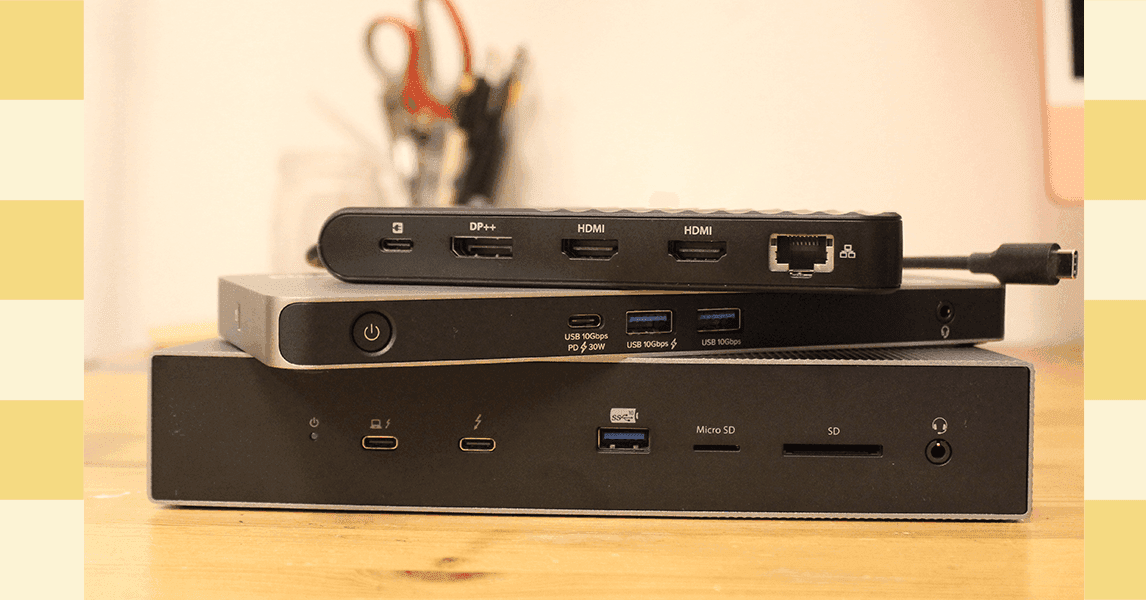
This Kensington Thunderbolt 5 dock is thick, heavy, and undeniably bulky. But as something that's not meant to move from your desk all that much, that's not a bad thing. The aluminum case on the Kensington will look great on your desk, but just know that it's quite long, taking up quite a footprint.