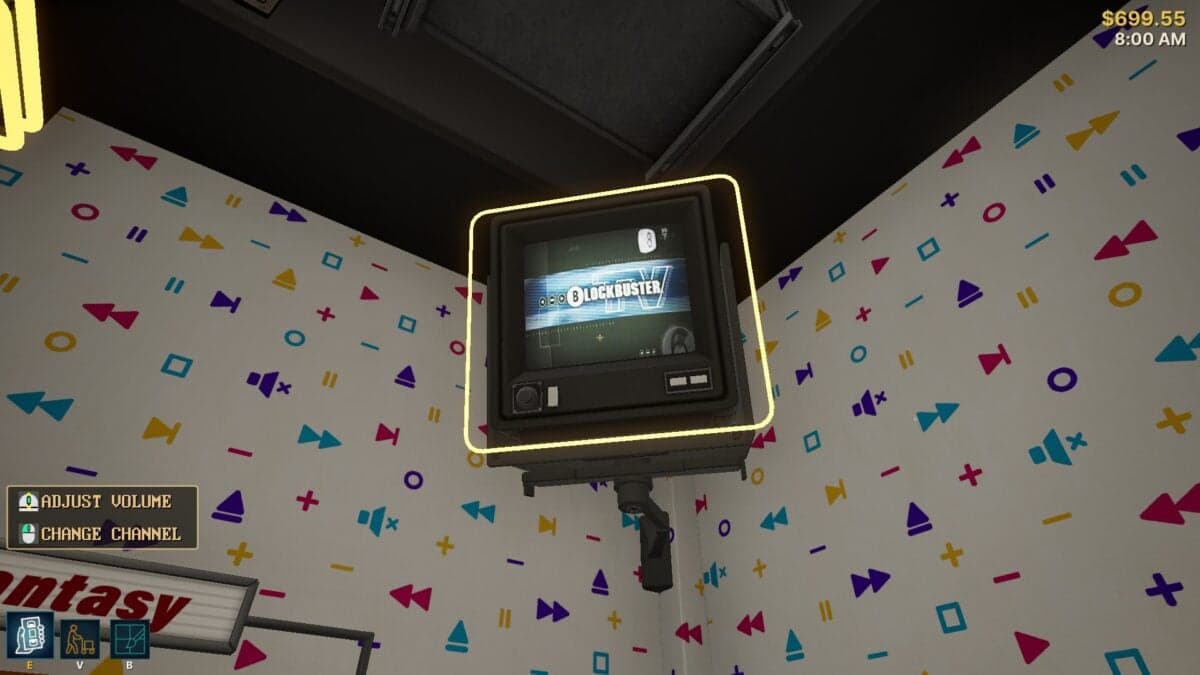
It’s 1995 again—at least, digitally—inside Retro Rewind, the cozy Steam simulation where players run their own ’90s-style video rental shop complete with garish star-patterned carpet, worn VHS boxes, and flickering CRT televisions. While the game’s default TVs cycle through short in-game clips, a clever hidden feature allows players to replace those clips with their own videos, effectively turning every rental store into a private Blockbuster. Whether you want to stream *The Terminator* in your shop, queue up a loop of vintage Blockbuster promos, or fill the screens with ’90s cartoons, Retro Rewind transforms from a passive simulator into an interactive media player—provided you know how to hack the system. This guide walks through the exact process of converting, uploading, and displaying your own video content within Retro Rewind, from sourcing vintage VHS rips to tweaking file formats in HandBrake, ensuring your retro store feels as authentic as the real thing.
What Makes Retro Rewind’s Custom TV Feature So Special
Released in mid-2024 by independent developer *Retro Simulator Studio*, Retro Rewind is more than just a nostalgic throwback—it’s a fully interactive homage to the late-era video rental culture, complete with simulated customers, rentals, and even a tiny arcade corner. What sets it apart from other retro sims, however, is its hidden video integration system. Unlike most Steam simulators that lock content behind closed doors, Retro Rewind includes a file-based override system that lets players inject their own video files into the game’s three in-game TV channels: Police, Sci-Fi, and Public. This feature wasn’t just an afterthought; it was designed as an Easter egg to reward players who wanted deeper immersion. ‘I wanted the TVs to feel alive,’ said the game’s lead developer in a post-launch interview, ‘like real rental store TVs playing promotional tapes or movie previews.’ The result is a uniquely personal experience—your shop, your movies, your nostalgia.
The Three TV Channels and Their Limitations
Each of the three TV channels in Retro Rewind serves a thematic purpose: *Police* for gritty action or noir-style content, *Sci-Fi* for genre films like *The Terminator*, *Jurassic Park*, or *Star Trek*, and *Public* for neutral or family-friendly videos. However, the game currently supports only one video file per channel at a time. This means you can’t load multiple short clips into a single channel unless you combine them into one continuous video. ‘We kept it simple,’ explained the developer. ‘One video per channel, looping seamlessly. It keeps performance smooth and avoids clutter.’ While this limits creative flexibility, it ensures stable playback even on lower-end PCs—a small trade-off for authenticity.
- Retro Rewind supports only three TV channels that can display custom content: Police, Sci-Fi, and Public.
- Each channel can hold only one video file at a time.
- Videos must be converted to 512×512 resolution in H.264 MP4 format to work in-game.
Step 1: Source Your Classic Content – Where to Find VHS Rips and Trailers
To populate your in-game TVs with authentic ’90s flair, you’ll need digital copies of the content you want to show. While you can technically use any video file, players seeking historical accuracy typically turn to two major online repositories: the Internet Archive and YouTube. The Internet Archive’s *VHS Rips* collection is a treasure trove of digitized analog recordings, including full movies, promotional tapes, and even entire TV specials from the era. For example, a quick search yields rare Blockbuster in-store promos from 1996, complete with cheesy voiceovers and bargain-bin VHS displays. ‘It’s like time travel,’ says one Reddit user who embedded a 1997 Blockbuster promo loop in their shop. ‘My kids think I’m running an actual video store.’ YouTube, meanwhile, is ideal for trailers, music videos, or ads—just make sure to download them in high enough quality using a tool like yt-dlp. Avoid pirated full-length movies unless the film is public domain or you own a physical copy—Steam’s Terms of Service prohibit illegal content in user-generated content.
Step 2: Convert Your Video to Retro Rewind’s Required Format
Once you’ve downloaded your desired video, the next step is conversion. Retro Rewind requires videos to be in MP4 format using the H.264 codec and sized precisely at 512 by 512 pixels. This unusual resolution ensures the video plays correctly on the in-game CRT screens without distortion. While this might sound technical, it’s easily accomplished with HandBrake, a free and open-source video transcoder. Begin by dragging your video file into HandBrake’s interface. Under the *Format* section, select MP4. In the *Video* tab, confirm that H.264 is chosen as the encoder—this is critical for compatibility. Then, navigate to the *Dimensions* tab and set the *Resolution Limit* to ‘Custom.’ Enter 512 for both width and height under *Resolution and Scaling*. Finally, rename the output file to something memorable—e.g., ‘Terminator_Loop.mp4’—and choose a save location. Hit ‘Start Encode,’ and wait for the process to complete. Depending on your video’s length and your CPU, this could take anywhere from a few minutes to over an hour for longer films.
“HandBrake is the Swiss Army knife of video conversion,” says a longtime Steam modder. “It’s lightweight, free, and perfect for retro tech simulations where file size and format matter.”
Step 3: Access Retro Rewind’s Game Files and Insert Your Video
With your converted video ready, it’s time to place it inside Retro Rewind’s file structure. First, open Steam and locate Retro Rewind in your game library. Right-click the game, then select *Manage > Browse Local Files*—this will open the game’s installation folder. Navigate through the directory tree: *Retro Rewind > Content > VHS > Movies*. Inside this folder, you’ll find three subfolders corresponding to the TV channels: *Police*, *Sci-Fi*, and *Public*. Choose the channel that best fits your content—*Sci-Fi* for *The Terminator*, *Public* for family-friendly promos, and so on. Each folder contains a default video file named in the format *RR_Channel_[ChannelName].mp4*. This is the file you’re replacing.
Preserving the Original for Safety
Before deleting or overwriting the original file, rename it by adding a simple suffix like ‘X’ or ‘OLD’—for example, change *RR_Channel_Sci-Fi.mp4* to *RR_Channel_Sci-Fi_X.mp4*. This ensures you can always revert to the default content if something goes wrong. Next, paste your converted video into the same folder and rename it to match the original file’s exact name—e.g., *RR_Channel_Sci-Fi.mp4*. Steam and Retro Rewind read the filename, not the internal content, so consistency is key. If the names don’t match exactly, the game won’t recognize the video.
Step 4: Boot Up Retro Rewind and Enjoy Your Custom Theater
After saving your changes, close the file explorer and launch Retro Rewind from Steam. Once in the game, use the TV remote or your keyboard controls to cycle through the channels until you reach the one you modified. If everything was done correctly, your custom video should now play in full loop on the in-game CRT screen. Be warned: it’s shockingly easy to lose track of time. ‘I meant to just test it,’ says one player, ‘but ended up watching *The Mask* trailer for 20 minutes while my in-game shop burned down.’ The immersive power of Retro Rewind’s TV feature lies in its simplicity—and its ability to turn a digital storefront into a personal nostalgia portal.
Creative Ideas for Your Retro Rewind TV Setup
Beyond just playing movies, players have transformed their Retro Rewind stores into immersive time capsules. Some use their TVs to showcase a rotating selection of ’90s movie trailers—*Toy Story*, *Pulp Fiction*, *Jurassic Park*—creating a mini film festival in their shop. Others curate thematic loops: a horror night with *Scream* and *The Blair Witch Project*, or a comedy block featuring *Dumb and Dumber* and *Wayne’s World*. More ambitious creators have even built custom compilation tapes using VHS rips from the Internet Archive, stitching together vintage commercials, movie previews, and station IDs into seamless 24-hour loops. One Reddit user created a ‘Blockbuster Night’ experience by syncing a 1996 store promo with a playlist of VHS opening logos. ‘It’s like being a kid again,’ they wrote, ‘but with better Wi-Fi.’
Technical Tips and Troubleshooting
Not every video will play perfectly on the first try. Common issues include audio/video sync problems, distorted aspect ratios, or the video not loading at all. If your video doesn’t appear, double-check the filename and format. Make sure it’s exactly 512×512 pixels and encoded in H.264 MP4. Some players report better results when using the *H.264 (x264)* preset in HandBrake under the *Video* tab. If the video loops too quickly or skips, ensure it’s not corrupted—try playing it in VLC first. For longer videos, consider splitting them into 10–15 minute segments and using a video editor like Shotcut to join them, then convert the final file. This avoids playback stuttering on weaker machines.
Why This Feature Matters Beyond Just Fun
Retro Rewind’s custom TV feature is more than a quirky Easter egg—it’s a bridge between digital simulation and analog memory. In an era dominated by algorithmic streaming, it offers a tactile, hands-on way to engage with media history. Educators and parents have used the feature to teach children about media culture before the internet, while film enthusiasts curate thematic exhibits of forgotten VHS gems. The game taps into a deep cultural nostalgia: the scent of plastic cases, the hum of a VCR, the ritual of flipping through a cardboard bin. ‘This isn’t just a game,’ said a film studies professor in a recent tweet. ‘It’s a preservation tool.’ By allowing players to upload their own content, Retro Rewind becomes a living archive—one where every store is a museum of personal and collective memory.
Key Takeaways: How to Play Custom Videos in Retro Rewind
- Retro Rewind lets players replace in-game TV clips with their own videos, turning the shop into a personal media hub.
- Only three channels support custom content: Police, Sci-Fi, and Public—each can hold one video file at a time.
- Videos must be converted to 512×512 resolution in H.264 MP4 format using HandBrake or similar software.
- Source authentic content from the Internet Archive’s VHS collection or YouTube trailers, avoiding pirated material.
- Always preserve the original file by renaming it before replacing it, allowing easy rollback if needed.
Frequently Asked Questions
- Can I play full-length movies on Retro Rewind’s TVs?
- Yes, but each channel supports only one video file at a time. You’ll need to combine a full movie into a single MP4 file and convert it to the required 512×512 resolution. Longer films may take significant time to encode and may not run smoothly on all PCs.
- Are there any legal concerns with uploading copyrighted movies or trailers?
- Retro Rewind itself doesn’t control content, but Steam’s Terms of Service prohibit illegal or copyright-infringing material. Use public domain films, your own physical copies, or content with explicit permission. The Internet Archive’s VHS collection includes many public domain and Creative Commons works.
- Can I add more than three videos by creating new channels?
- Currently, the game only supports the three built-in channels. There is no official way to add more without modifying the game files, which may violate Steam’s rules. Future updates could expand this feature.