LoaderSave StorySave this storyCommentLoaderSave StorySave this storyFeatured in this articleBest OverallPlugable USB-C 9-in-1 Hub (USBC-9IN1E)Read more$50 Amazon
Best Budget USB-C HubHiearcool USB C Hub, USB-C Multi-Port AdapterRead more$20 Amazon
If You’re All-In on USB-CSatechi USB-C Multiport 8KRead more$100 Amazon
Add Some StorageSatechi USB-C Hybrid Multiport AdapterRead more$90 $63 (30% off) Amazon
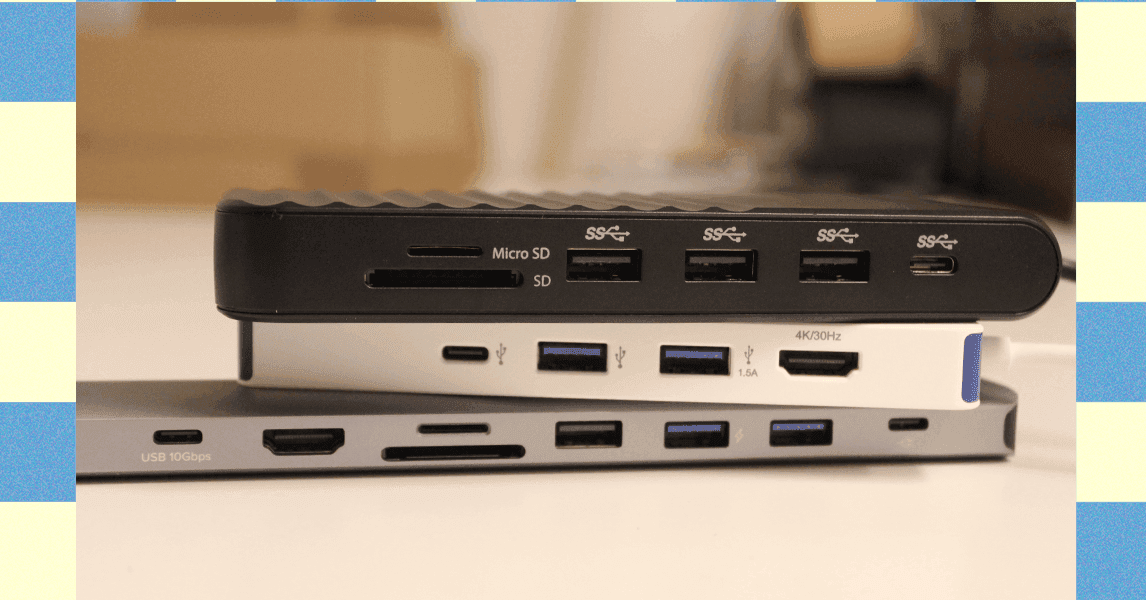
Your laptop never has enough ports, especially if it’s the MacBook Air I'm using to write this article. You can carry around a bag of assorted dongles to plug in everything, or you can nab one of these USB hubs. Hubs expand the number and kind of ports available from one device, so you can cut down on the clutter. After testing dozens over the years, these are the best USB hubs I've found for different needs.
Hunting for more home-office gizmos and gadgets? Check out our other guides, including the Best Docking Stations, Ultimate Work-From-Home Gear, Best Office Chairs, Best Standing Desks, and Best USB Flash Drives.
Updated February 2026: We pared down the list and added the HyperDrive Next Mobile Dock and Kensington Triple Video Dock to the honorable mentions.
Do You Need a USB Hub or a Docking Station?
The line between USB hubs and docking stations can be fuzzy. But to put it simply, docking stations are larger accessories meant for connecting multiple displays to your device at your desk. USB hubs, on the other hand, are more portable and primarily meant for connecting accessories on the go.
USB hubs are small, portable devices you can plug directly into a port on your laptop to get extra USB ports, SD card readers, headphone jacks, and other connections that your computer may not have. The inclusion of USB-C with Power Delivery even means that you use them at your with your laptop charging. However, if you plan on regularly connecting your laptop to a full-blown workstation—with a keyboard, mouse, multiple monitors, the whole shebang—then you might want to consider a docking station instead.
Laptop docking stations are larger, more expensive, and are designed to spend most of their time on your desk. They typically have a power supply to charge other devices and offer multiple monitor outputs, plus Ethernet connections. If you frequently use your laptop at a desk and need to connect multiple high-resolution monitors or high-powered accessories, you'll want a docking station.
Things to Know About USB Hubs Before Buying
USB hubs should be simple devices, but apparently it's not possible to make One Port to Rule Them All without things getting a little messy. We have a full explainer here, but if you just want to get the basics before you buy your hub, here are a few things to keep in mind.
Ports speeds matter; version numbers don't. It's tempting to look at a USB 3.2 label and assume it's faster than USB 3.0, but unfortunately, that's not the case. In fact, many manufacturers have started defaulting to writing the speed of individual ports directly onto the device itself, rather than relying on version numbers on spec sheets.
Use Thunderbolt for your most data-hungry devices. Thunderbolt is a beefed-up version of USB, developed by Intel and Apple, that uses the same USB-C port you're familiar with. These can carry huge amounts of data (up to 40 Gbps for Thunderbolt 3 and 4), which makes them ideal for things like SSDs, 4K and 8K displays, or monitors with ultrahigh frame rates for gaming. We're now up to Thunderbolt 5, which is slowly making its way into some laptops. (Make sure your laptop port supports Thunderbolt.)
Don't forget the power. Most USB hubs will draw electricity directly from your laptop to power any devices connected to it, but they obviously need to take up a port to do so. However, some hubs support USB Power Delivery (or USB-PD, sometimes marketed as “passthrough charging”) which allows you to plug a charger into one of the ports on the hub so you can keep charging your laptop while you plug in all your extra gadgets.
What Is Going on With USB Generations?
It would be nice if you could plug a USB 3.2 device into a USB 3.2 port using a USB 3.2 cable and trust that it all works. Unfortunately, it's way more complicated than that.
When USB 3.0 came out in 2008 it had a max speed of around 5 Gbps. However, when USB 3.1 came out in 2013 with a max speed of 10 Gbps, the 5-Gbps version was renamed to USB 3.1 Gen 1, while the new, faster spec was USB 3.1 Gen 2. Confused yet? Well, it gets worse. When USB 3.2 came out in 2019, the 5-Gbps USB was rebranded again to “USB 3.2 Gen 1,” the 10-Gbps version became “USB 3.2 Gen 2,” and the new 20-Gbps spec became—you guessed it—USB 3.2 Gen 2x2. … Wait, what? The “2x2” refers to running two 10 Gbps lanes of data simultaneously and … you don't need to know all of this. Many hub manufacturers have given up on names, labels, and symbols. They've just started printing the maximum speed next to ports directly.
What this means for you is that if you're using older storage devices or accessories, you may want to look up the specific generation of USB if speed matters to you. A device marketed as “USB 3.0” several years ago and a device marketed as “USB 3.2” today could potentially have identical transfer speeds if the manufacturer is less than forthcoming with generation names or transfer speed ratings.
All Those Confusing USB Terms, Explained
There are various generations of USB, with different capabilities and speeds, plus ports that look similar but do other things. There are a few key terms you should know when shopping for a USB hub:
USB 2.X/USB 3.X/USB 4: Every USB device is built to some version of the USB specification, mainly characterized by how much data they can transfer and how much power they can deliver (or at least, those are the main things you need to care about). While most of these devices are inter-operable as long as they use the same port, the entire chain will conform to the slowest part of the chain. Say you plug a USB 3.2 SSD into a USB 3.2 port on your computer, but use a USB 3.0 cable—data will only transfer at USB 3.0 speeds. Make sure every link in your chain is rated for the speed you need.
USB Power Delivery (or USB-PD): If your laptop, tablet, or other device doesn't have enough USB ports, you might be forced to choose between charging or plugging in accessories. USB-PD ports let you bridge this gap by plugging a charger into the hub to supply power to the laptop (and anything else connected to the hub that needs it. You'll see this referred to as “pass-through charging" though it's not an official specification. You'll want to make sure the wattage this USB-C port supports can handle what your laptop needs. A MacBook Pro typically needs 96 watts during intense workloads (though you can still charge them at lower wattage), so you'd need a 100-watt USB-C port on the hub.
USB-C and USB-A: These terms refer to the physical shape of the connectors and ports on devices. USB-C is common and looks like a small, elongated oval. It's also reversible, so you can't plug it in the wrong way. USB-A is the older, rectangular port you've seen for years. There are a lot more types of USB connectors, but these are the two you're most likely to see in most hubs.