Microsoft officially commenced the rollout of the April 2026 Security Update for Windows 11 on Tuesday, April 14, 2026, introducing a suite of understated but meaningful enhancements aimed at bolstering security, accessibility, and everyday usability. Unlike flashy feature drops that dominate headlines, this cumulative update focuses on refining existing tools, removing friction points, and quietly improving the operating system’s reliability. From simplified Smart App Control management to expanded Windows Narrator capabilities and subtle design tweaks in the Settings app, the update represents Microsoft’s ongoing commitment to polish Windows 11 into a more intuitive and secure platform.
- Smart App Control (SAC) can now be enabled or disabled without reinstalling Windows, expanding its usability beyond initial installations.
- Windows Narrator gains broader image description support via Copilot, no longer limited to Copilot+ PCs.
- File Explorer introduces voice typing for renaming files and fixes visual glitches like white flashes during tab or window launches.
- Display support expands to include 1000Hz+ refresh rates and improved HDR performance for non-compliant monitors.
- Settings app receives usability refinements, including restored device specs and optimized loading performance.
How the April 2026 Windows 11 Update Refines Security with Smart App Control Changes
One of the most significant yet least discussed improvements in the April 2026 update revolves around Smart App Control (SAC), a security feature designed to prevent unauthorized or malicious applications from running on a system. Historically, SAC was only available during fresh Windows installations and could not be toggled afterward without reinstalling the OS—a limitation that frustrated power users and IT administrators alike. Microsoft’s decision to remove this restriction reflects a broader shift toward flexibility in security tools, aligning with feedback from enterprise and consumer users who prioritize both protection and control.
A Closer Look at SAC’s Newfound Flexibility
Previously, SAC operated under a one-way switch model: once enabled during setup, it could only be disabled by reinstalling Windows. This approach prioritized security over convenience, a trade-off that made SAC impractical for users who needed to experiment with software or manage dynamic workflows. With the April 2026 update, SAC can now be toggled on or off at any time directly from the Windows Security app (Windows Security > App & Browser Control > Smart App Control). This change not only simplifies management but also positions SAC as a more viable option for users who may have hesitated to enable it due to past restrictions.
For enterprise environments, where SAC’s ability to block unsigned or untrusted applications is particularly valuable, this update removes a critical hurdle. IT teams can now deploy SAC more aggressively without the fear of locking themselves out of necessary tools. Meanwhile, home users gain granular control over their security posture, allowing them to balance protection against the need for flexibility.
Windows Narrator Gains Broader AI-Powered Image Descriptions
Accessibility remains a cornerstone of Microsoft’s development priorities, and the April 2026 update delivers a meaningful enhancement to Windows Narrator, the built-in screen reader. While Narrator has long supported image description features, these capabilities were previously limited to Copilot+ PCs—devices equipped with advanced local AI processing. The April update removes this dependency, instead leveraging Microsoft’s cloud-based Copilot service to generate image descriptions dynamically.
From Copilot+ PCs to Universal Accessibility
The shift from local to cloud-based AI for image descriptions addresses a key accessibility gap, particularly for users on non-Copilot+ hardware. By offloading processing to Copilot, Narrator can now deliver real-time image descriptions on a much wider range of devices, including older PCs and low-powered laptops. This change is especially impactful for visually impaired users who rely on Narrator for tasks like reading documents, navigating web pages, or interpreting graphs in educational or professional settings.
To use the feature, users can invoke the new shortcuts: "Narrator key + Ctrl + D" to describe the currently focused image, or "Narrator key + Ctrl + S" to describe the entire screen. Microsoft has also improved the accuracy and responsiveness of these descriptions, reducing latency and enhancing the overall user experience. For developers and accessibility advocates, this update underscores Microsoft’s commitment to inclusive design, ensuring that cutting-edge features are not confined to premium hardware.
Settings App Receives Subtle but Impactful Design and Performance Tweaks
While major visual overhauls are rare in cumulative updates, the April 2026 rollout includes several refinements to the Windows 11 Settings app aimed at improving clarity, performance, and usability. These changes, though incremental, address long-standing frustrations for users who navigate Settings frequently for system management, updates, or troubleshooting.
Home Page and Device Information Get a Refresh
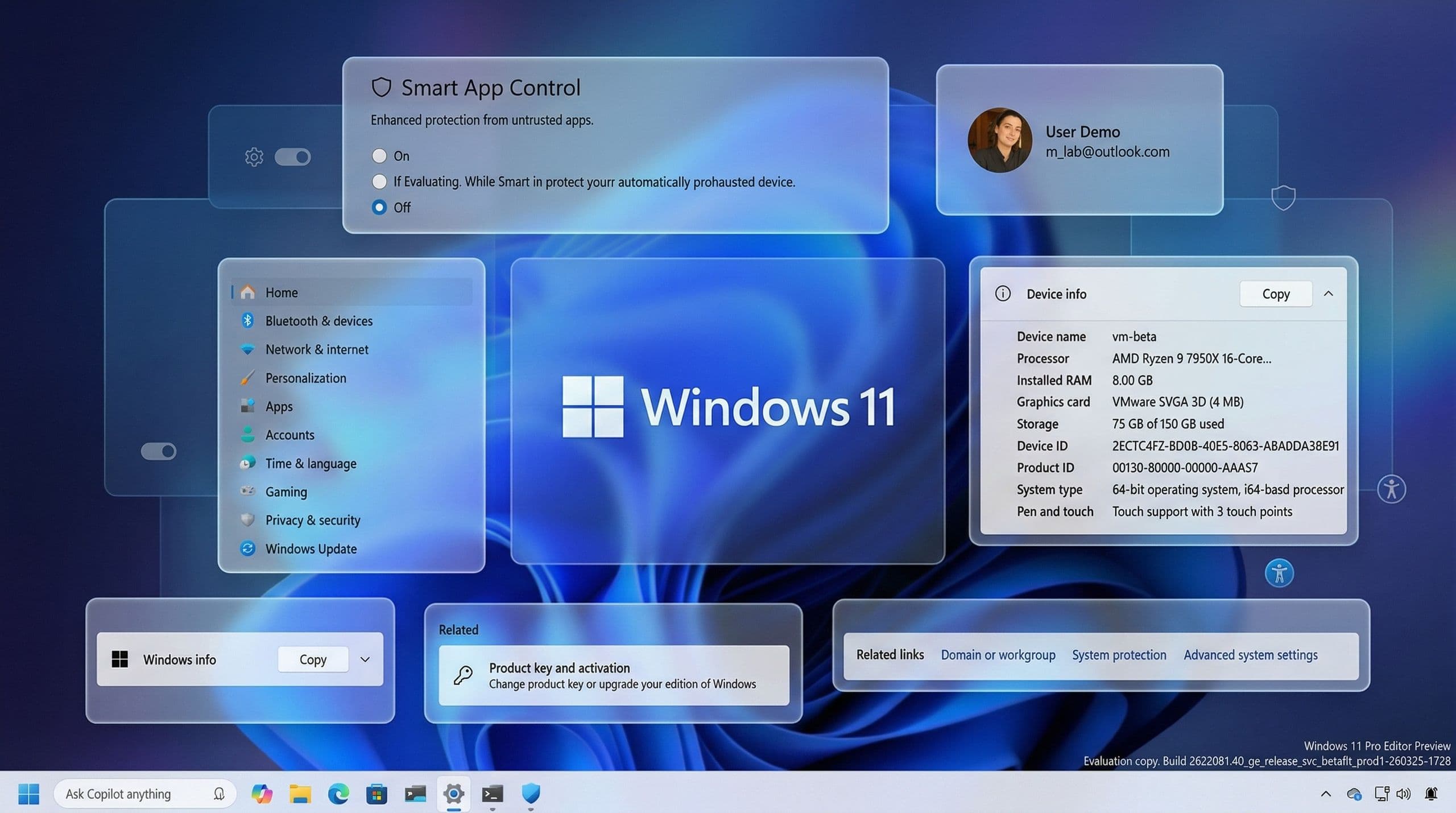
The Settings app’s Home page, which serves as a dashboard for system status and quick actions, has received minor but noticeable improvements. The Device info card, which displays essential hardware details like processor, memory, and storage, now loads faster and presents information in a more digestible format. Microsoft has also restored the visibility of top hardware specifications—such as processor models and graphics cards—which were previously obscured in earlier iterations of the Settings app.
Additionally, the update includes performance optimizations for the Settings app’s update download process. Users who frequently check for updates via Settings > System > Advanced will notice reduced loading times and fewer instances of stalled downloads, a change that aligns with Microsoft’s broader push to make Windows updates more reliable and user-friendly.
About Page Restores Key Hardware Specifications
One of the most notable reversals in this update is the restoration of key hardware specifications on the About page within Settings. In prior versions of Windows 11, Microsoft had streamlined the About page to emphasize software details while omitting granular hardware information. This omission frustrated IT professionals, gamers, and power users who rely on quick access to specs for troubleshooting or compatibility checks.
With the April 2026 update, the About page now prominently displays processor, memory, graphics, and storage details under the Device info section. This change not only restores functionality but also reflects Microsoft’s responsiveness to user feedback. For example, graphics and storage details are now visible by default, eliminating the need to navigate through multiple submenus.
Accounts Section Adds Microsoft 365 Family Upgrade Option
In the Accounts section of the Settings app, Microsoft has introduced a new upgrade option for users with a Microsoft 365 Family plan connected to their Windows 11 system. This feature allows users to seamlessly transition to a higher-tier subscription directly from Settings, provided they have not disabled suggested content in their preferences. The update also includes a refreshed dialog for changing account time zones, aligning with Windows 11’s modern design language for a more cohesive user experience.
File Explorer Gets Voice Typing and Bug Fixes
File Explorer, the backbone of Windows file management, receives several practical improvements in the April 2026 update, including a long-awaited accessibility feature and fixes for persistent visual glitches. While the update does not introduce sweeping visual changes, these tweaks address common pain points that disrupt productivity and degrade the user experience.
Voice Typing for File Renaming
One of the most user-requested features for File Explorer is now a reality: voice typing support for renaming files. Users can now rename files hands-free by activating voice typing (typically via a keyboard shortcut or voice command) and dictating the new filename directly. This feature is particularly beneficial for users with mobility impairments, those who work in environments where typing is impractical, or anyone looking to streamline repetitive tasks.
Microsoft has integrated this capability seamlessly into File Explorer’s context menu, ensuring that voice typing feels like a natural extension of the existing workflow. The feature also supports common voice commands for punctuation and formatting, reducing the need for manual corrections.
Bug Fixes Address White Flashes and File Unlocking Issues
The update also tackles two long-standing visual annoyances in File Explorer: white flashes that occur when launching new tabs or windows (especially when "This PC" is set as the default startup page) and similar flashes when resizing elements within an application. These glitches, while not critical, have been a source of frustration for users who rely on visual consistency.
Additionally, Microsoft has improved the reliability of file unlocking for downloads from the internet. Previously, files downloaded from browsers or email clients could become locked due to security restrictions, preventing users from previewing or editing them. The update addresses this issue by ensuring these files are unlocked by default, provided they pass standard security scans.
Display Support Expands to 1000Hz+ Refresh Rates and HDR Improvements
For users with high-end or specialized displays, the April 2026 update introduces significant advancements in refresh rate support and HDR performance. These changes cater to gamers, content creators, and professionals who demand precise color accuracy and smooth motion, even if they operate outside the mainstream hardware ecosystem.
1000Hz+ Refresh Rate Recognition
Modern displays, particularly those designed for competitive gaming or professional applications, often feature refresh rates far exceeding the standard 144Hz or 240Hz. The April update enables Windows 11 to recognize and properly utilize displays reporting refresh rates of 1000Hz or higher, a capability that was previously unsupported. This change ensures that users with cutting-edge monitors—such as those from ASUS ROG Swift, Alienware, or custom-built PC setups—can take full advantage of their hardware’s capabilities without compatibility issues.
For gamers, this means reduced input lag and smoother frame pacing, while content creators benefit from more accurate color representation and reduced motion blur. Microsoft’s decision to support such high refresh rates underscores its commitment to catering to niche but demanding user segments.
HDR and USB4 Power Management Enhancements
The update also includes improvements for High Dynamic Range (HDR) performance on displays with non-compliant DisplayID 2.0 blocks—common in older or third-party monitors. Microsoft has refined the system’s ability to interpret and apply HDR settings accurately, reducing washed-out colors or incorrect brightness levels. For users who rely on HDR for content creation or media consumption, these tweaks can significantly enhance the visual experience.
Additionally, the update introduces refined USB4 monitor support, where the controller now drops to its lowest power state during sleep mode to conserve battery life. This change is particularly valuable for laptop users who frequently switch between battery and AC power. Auto-rotation for 2-in-1 devices has also been improved, ensuring that screen orientation changes are more reliable after waking from sleep.
Why These Incremental Updates Matter for Windows 11’s Future
At first glance, the April 2026 Security Update for Windows 11 may appear unremarkable—a collection of small, behind-the-scenes tweaks rather than a headline-grabbing feature drop. However, these changes are emblematic of Microsoft’s evolving strategy for Windows 11, which increasingly emphasizes stability, security, and user-centric refinements over flashy innovations. In an era where operating systems risk becoming stale or overly complex, Microsoft’s focus on incremental improvements represents a deliberate effort to rebuild trust and satisfaction among its user base.
For enterprise customers, updates like this one are critical for maintaining productivity and security without disruptive overhauls. IT administrators can deploy SAC more confidently, knowing users won’t be locked out of essential tools, while the expanded Narrator capabilities ensure compliance with accessibility standards. For consumers, the refinements in File Explorer and Settings app performance address everyday frustrations that accumulate over time, such as slow load times or cryptic error messages.
Moreover, the update reflects a broader industry trend toward "quiet excellence"—where software evolves through subtle, user-focused enhancements rather than revolutionary leaps. Microsoft’s competitors, including Apple and Google, have adopted similar approaches with their respective operating systems, prioritizing reliability and polish over constant feature bloat. By embracing this philosophy, Windows 11 is gradually shedding its reputation as an incomplete or unstable successor to Windows 10.
Looking ahead, Microsoft’s commitment to this model suggests that future updates will continue to prioritize usability and security refinements. Whether through expanded accessibility features, deeper integration of AI tools, or further optimizations for high-end hardware, the company appears determined to refine Windows 11 into a platform that feels both modern and mature. For users who have grown accustomed to the frustrations of early Windows 11 builds, these incremental updates may not be exciting—but they are essential.
A Step Toward Windows 11’s Long-Term Stability
Windows 11 launched in October 2021 amid mixed reactions from users and critics alike. While the redesign aimed to modernize the operating system with a refreshed interface, centered Start menu, and improved touch support, early iterations suffered from performance issues, compatibility problems, and a steep learning curve for longtime Windows users. Microsoft’s subsequent updates have steadily addressed these pain points, but the April 2026 rollout represents another milestone in the OS’s maturation process.
“The April 2026 update isn’t about reinventing Windows 11—it’s about making it work the way users expect it to, without getting in their way,” said Mauro Huculak, a Windows expert and longtime contributor to Windows Central. “These are the kinds of changes that fly under the radar, but over time, they add up to a system that’s more reliable, secure, and pleasant to use.”
For many, the update’s most compelling aspect is its focus on the “invisible” improvements—the ones that prevent frustration before it starts. Whether it’s eliminating the need to reinstall Windows to toggle SAC, reducing visual glitches in File Explorer, or ensuring Narrator works reliably on non-premium hardware, these changes collectively enhance the operating system’s overall quality. In an era where software updates often prioritize novelty over necessity, Microsoft’s approach stands out for its pragmatism.
What’s Next for Windows 11?
While the April 2026 update focuses on refinement rather than revolution, Microsoft’s roadmap for Windows 11 suggests that more transformative features may be on the horizon. Speculation abounds about upcoming AI integrations, deeper Copilot+ PC optimizations, and potential adjustments to the user interface based on user feedback. However, the company’s emphasis on incremental updates indicates that stability and reliability will remain top priorities.
For now, users can expect the gradual rollout of the April 2026 update via Microsoft’s Controlled Feature Rollout (CFR) technology, which phases updates to minimize disruptions. Those eager to try the new features can check for updates in Settings > Windows Update or download the standalone installer from Microsoft’s website once it becomes widely available.
Frequently Asked Questions
- How do I enable Smart App Control in the April 2026 Windows 11 update?
- Smart App Control can now be enabled or disabled directly from the Windows Security app by navigating to App & Browser Control > Smart App Control. No reinstallation of Windows is required.
- Can Windows Narrator describe images on non-Copilot+ PCs after this update?
- Yes, the April 2026 update enables Windows Narrator to use Copilot for image descriptions on all Windows 11 devices, not just Copilot+ PCs.
- What display improvements come with the April 2026 update?
- The update adds support for 1000Hz+ refresh rates, improves HDR performance on non-compliant monitors, and enhances USB4 power management for better battery life.